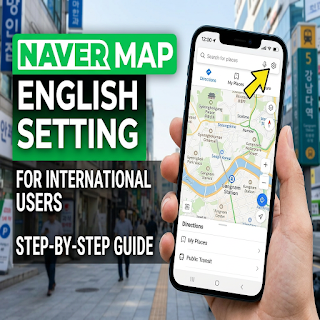
In the current Naver Map app, open the MY tab, tap the settings gear, and choose Language. On iPhone, the app may send you to the device’s language settings for Naver Map.
Change the language on Android
Open Naver Map, select MY at the bottom, and tap the gear at the upper right. Open Language and select English. Return to the map and check a menu or route screen to confirm the interface changed.
Change the language on iPhone
Use MY → gear → Language, or open your iPhone’s Settings → Naver Map → Preferred Language. If the preferred-language option is missing, Naver’s help page says to add a supported language under the device’s General → Language & Region settings, then check Naver Map again.
Find the correct place
Match the map pin with the full address and exact branch name. Keep the Korean place name beside its English name so you can compare a sign, a booking confirmation, and the app result. A familiar brand name alone is not enough when several branches are nearby.
Check the route before setting off
Confirm the travel mode, departure time, station exit, and direction of travel. A route from your hotel may differ from one starting at a nearby station. Save the destination address in a form you can show to staff if mobile data stops working.
The interface language does not guarantee that every business description or feature is available in English. This guide focuses on the language setting and checking the destination, rather than promising complete translation or a particular arrival-time accuracy.
Official resources
Naver Map: Official language-setting instructions