
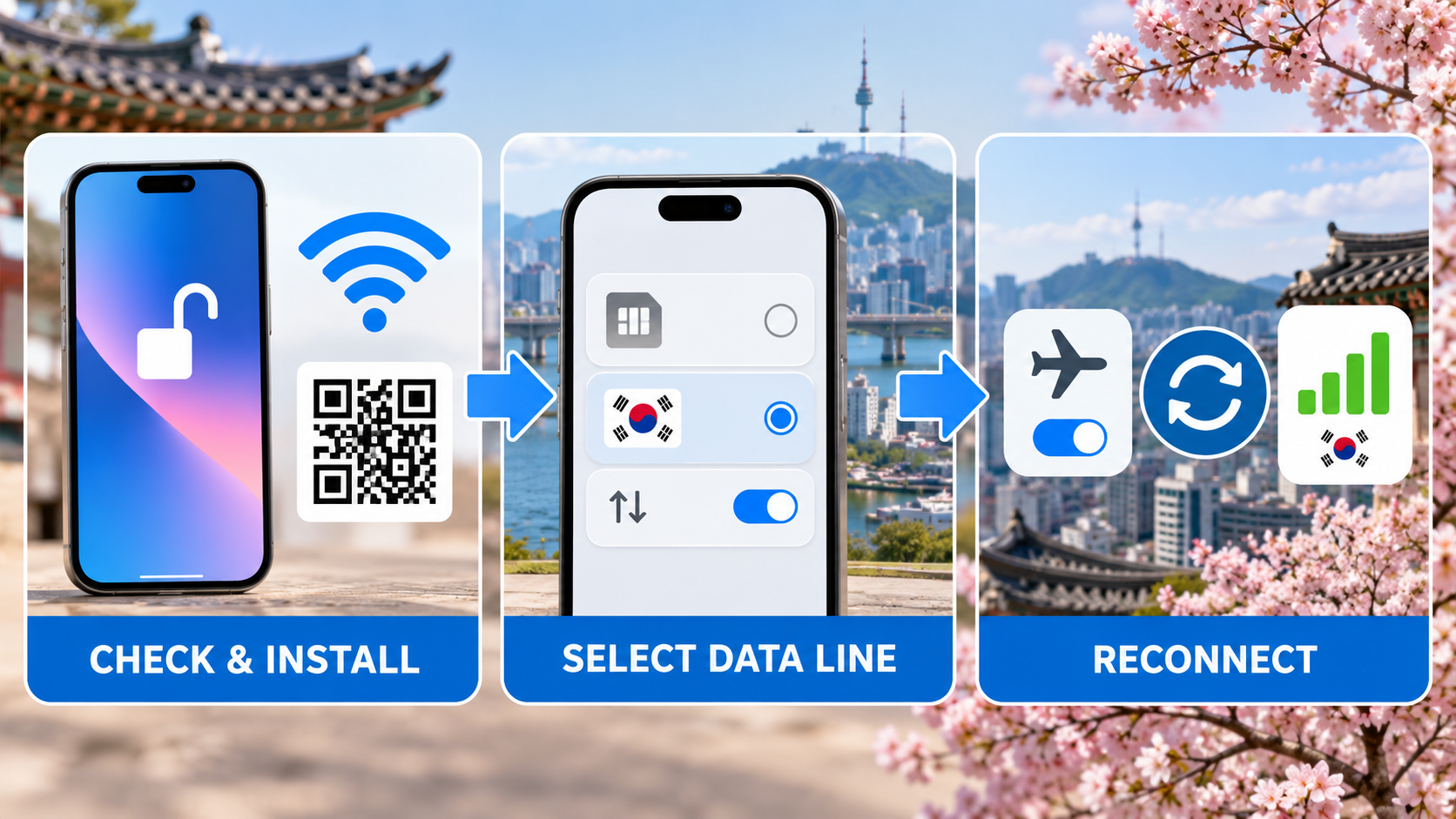
If your Korea tourist eSIM shows No Service, first connect to Wi-Fi, confirm the eSIM line is turned on, and select it for mobile data.
Then check that the phone is carrier-unlocked, follow your Korean provider's roaming setting, and restart the phone. Do not delete the eSIM profile while troubleshooting: some tourist products cannot be reissued after installation.
Confirm compatibility, carrier unlock, and the plan type
Before changing settings, verify that your exact phone model supports eSIM, is unlocked, and matches the Korean carrier's compatibility list.
Next, confirm what you purchased. A data-only eSIM may not support outgoing calls, SMS, or local verification codes. LG U+'s current tourist page separates data-only and data-plus-voice products and warns that banking or government identity verification is not supported even on its voice/SMS tourist service. If you need a Korean number for reservations, compare the plan details with our Korea restaurant reservation guide without a Korean phone number before assuming the eSIM will receive every type of code.
Do not delete the installed eSIM.
Some Korean tourist eSIMs cannot be restored, reinstalled, or reissued after deletion. Keep the QR email and order number, but ask the carrier before removing the profile.
Install the QR profile while connected to reliable Wi-Fi
Open the QR code on a second screen or print it, connect the phone to Wi-Fi, and use the phone's Add eSIM menu to scan it once.
On iPhone, go to Settings → Cellular or Mobile Service → Add eSIM → Use QR Code. On many Samsung phones, use Settings → Connections → SIM manager → Add eSIM → Scan QR code from service provider. Menu wording can vary by model and software version. If the QR code has already been accepted, stop scanning it repeatedly and look for a new cellular plan in the SIM list instead.
Keep the activation details offline.
Save the carrier's English support page, order number, and airport counter location before flying. Do not share the QR code publicly because it is tied to your purchased profile.
Turn on the Korea line and select it for mobile data
After landing in Korea, turn on the Korea eSIM line, select it as the cellular data line, and turn off cellular data switching.
On iPhone, open Settings → Cellular, tap the Korea line, enable Turn On This Line, then return to Cellular Data and select Korea. On Android, open SIM manager and choose the Korea eSIM for Mobile data. If your home SIM stays enabled, disable its data roaming and automatic data switching unless your home carrier explicitly includes Korea. This prevents the phone from silently falling back to an expensive home data connection.
Refresh the connection without erasing the profile
Toggle Airplane Mode for about 20 seconds, turn it off, restart the phone, and test a simple website with Wi-Fi disabled.
A signal icon without working data usually points to the selected data line, roaming instruction, plan start date, or APN. No Service on every attempt can indicate an unsupported or locked device, a plan that is not yet valid, or a carrier-side activation issue. Test maps or a normal webpage rather than relying only on a messaging app that may be using cached content. For navigation after reconnecting, see our Naver Map English setup guide.
A working setup should show all four results
- The Korea eSIM line is visible and enabled.
- A Korean network name or signal bars appear.
- The Korea line is selected for cellular data.
- A new webpage opens after Wi-Fi is turned off.
Separate a data problem from calls, SMS, and verification
If mobile data works, stop changing network settings and check whether your plan actually includes a phone number, outgoing calls, and SMS.
For urgent situations, do not wait for an app verification code. Use hotel staff, an airport information desk, or another working phone to reach the appropriate service. Keep our Korea emergency numbers guide available offline. If the problem started after the phone was lost or replaced, follow the lost phone protection and SIM suspension steps rather than trying to move a non-transferable profile yourself.
Contact the carrier with the exact evidence it needs
If the eSIM still fails, stay on Wi-Fi and send the carrier your order number, phone model, EID/IMEI when requested, location, error message, and current line settings.
Ask the carrier to confirm four things: whether the order is active, whether the device model is supported, whether data roaming or a specific APN is required, and whether the installed profile can be reissued. If the carrier confirms that the device is incompatible, keep the eSIM installed until the refund or replacement decision is documented. A physical tourist SIM or pocket Wi-Fi may be the practical backup if your phone has a compatible slot; our Incheon Airport SIM guide explains the airport purchase route.
Should I install my Korea eSIM before I fly?
You can often install it on Wi-Fi before departure, but the activation and validity rules differ by product. Check when the plan starts and do not generate data traffic on the travel line until the provider says it is safe.
Why does the eSIM show a number but data does not work?
The line may be enabled without being selected for cellular data. Select the Korea line, apply the provider's roaming or APN instruction, toggle Airplane Mode, and restart before contacting support.
Can I keep my home SIM active?
Yes on supported dual-SIM phones, but disable home-line data roaming and cellular data switching unless your home plan covers Korea. Incoming calls or voicemail can still create charges depending on your carrier.
Will a data-only eSIM receive Korean verification texts?
No. Data-only service does not include SMS. Even a tourist voice/SMS line may not support Korean identity verification for banking or government services, so check the exact product terms.
Should I reset network settings?
Use it only after the line, data selection, roaming instruction, restart, and carrier status are checked. A network reset can remove saved Wi-Fi and other network settings, so record what you need first.
If it is still not working
Do not delete the eSIM. Connect to Wi-Fi and ask the official carrier to verify the order, device compatibility, start date, required roaming/APN settings, and reissue policy. Use an airport carrier counter or a physical SIM/pocket Wi-Fi only after support confirms the next step.
Checked on September 8, 2026 against official KT, LG U+, and Apple eSIM guidance. Product terms and compatibility can change, so confirm your exact order on the carrier's current page.
댓글 쓰기