Category: Phones & Apps

  • Korea Tourist eSIM Not Working|Activation, Data Line, and Roaming Fixes

    Korea Tourist eSIM Not Working|Activation, Data Line, and Roaming Fixes

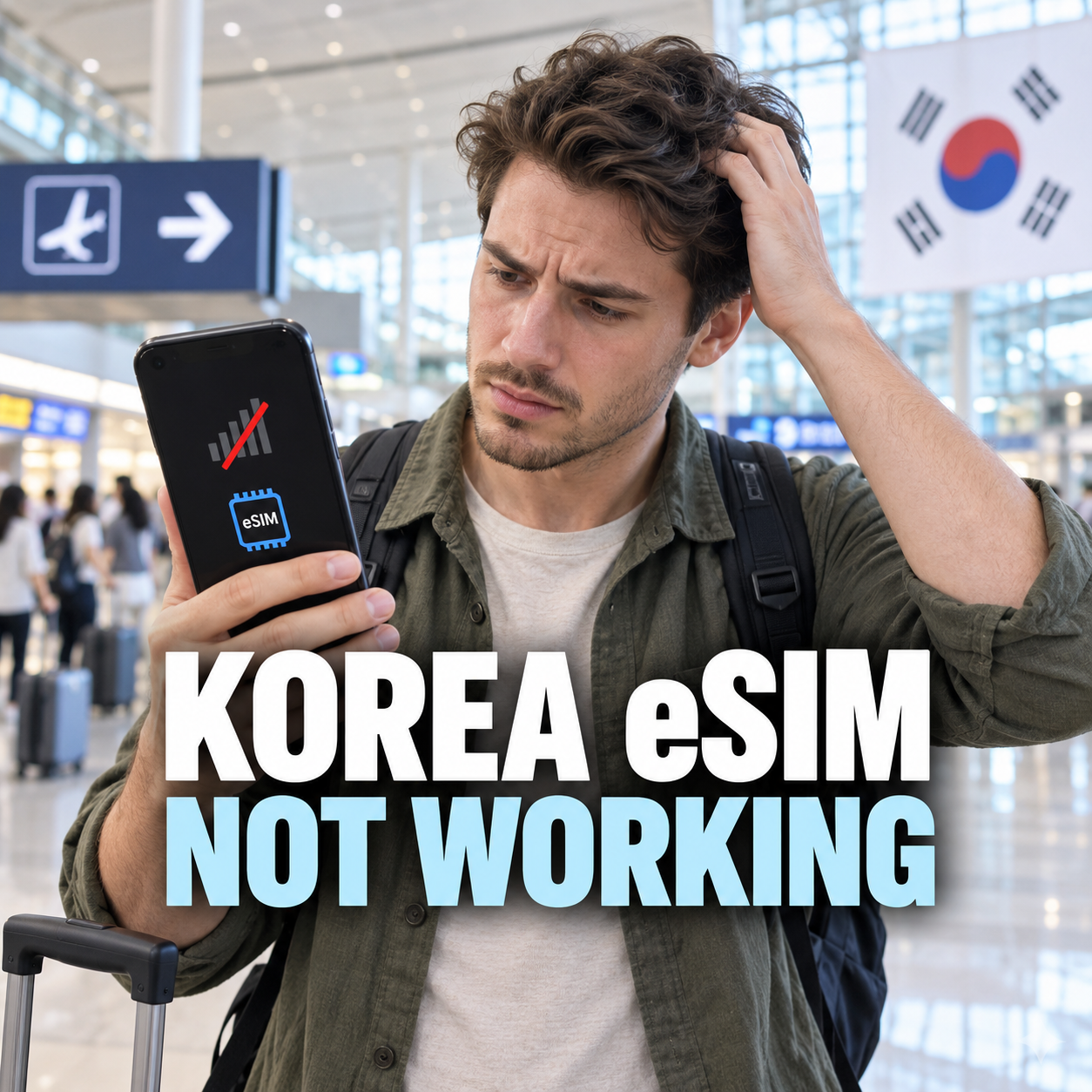
    If your Korea tourist eSIM shows No Service, first connect to Wi-Fi, confirm the eSIM line is turned on, and select it for mobile data.

    Then check that the phone is carrier-unlocked, follow your Korean provider’s roaming setting, and restart the phone. Do not delete the eSIM profile while troubleshooting: some tourist products cannot be reissued after installation.

    Confirm compatibility, carrier unlock, and the plan type

    Before changing settings, verify that your exact phone model supports eSIM, is unlocked, and matches the Korean carrier’s compatibility list.

    Next, confirm what you purchased. A data-only eSIM may not support outgoing calls, SMS, or local verification codes. LG U+’s current tourist page separates data-only and data-plus-voice products and warns that banking or government identity verification is not supported even on its voice/SMS tourist service. If you need a Korean number for reservations, compare the plan details with our Korea restaurant reservation guide without a Korean phone number before assuming the eSIM will receive every type of code.

    Do not delete the installed eSIM.

    Some Korean tourist eSIMs cannot be restored, reinstalled, or reissued after deletion. Keep the QR email and order number, but ask the carrier before removing the profile.

    Install the QR profile while connected to reliable Wi-Fi

    Open the QR code on a second screen or print it, connect the phone to Wi-Fi, and use the phone’s Add eSIM menu to scan it once.

    On iPhone, go to Settings → Cellular or Mobile Service → Add eSIM → Use QR Code. On many Samsung phones, use Settings → Connections → SIM manager → Add eSIM → Scan QR code from service provider. Menu wording can vary by model and software version. If the QR code has already been accepted, stop scanning it repeatedly and look for a new cellular plan in the SIM list instead.

    Keep the activation details offline.

    Save the carrier’s English support page, order number, and airport counter location before flying. Do not share the QR code publicly because it is tied to your purchased profile.

    Turn on the Korea line and select it for mobile data

    After landing in Korea, turn on the Korea eSIM line, select it as the cellular data line, and turn off cellular data switching.

    On iPhone, open Settings → Cellular, tap the Korea line, enable Turn On This Line, then return to Cellular Data and select Korea. On Android, open SIM manager and choose the Korea eSIM for Mobile data. If your home SIM stays enabled, disable its data roaming and automatic data switching unless your home carrier explicitly includes Korea. This prevents the phone from silently falling back to an expensive home data connection.

    Refresh the connection without erasing the profile

    Toggle Airplane Mode for about 20 seconds, turn it off, restart the phone, and test a simple website with Wi-Fi disabled.

    A signal icon without working data usually points to the selected data line, roaming instruction, plan start date, or APN. No Service on every attempt can indicate an unsupported or locked device, a plan that is not yet valid, or a carrier-side activation issue. Test maps or a normal webpage rather than relying only on a messaging app that may be using cached content. For navigation after reconnecting, see our Naver Map English setup guide.

    A working setup should show all four results

    • The Korea eSIM line is visible and enabled.
    • A Korean network name or signal bars appear.
    • The Korea line is selected for cellular data.
    • A new webpage opens after Wi-Fi is turned off.

    Separate a data problem from calls, SMS, and verification

    If mobile data works, stop changing network settings and check whether your plan actually includes a phone number, outgoing calls, and SMS.

    For urgent situations, do not wait for an app verification code. Use hotel staff, an airport information desk, or another working phone to reach the appropriate service. If the problem started after the phone was lost or replaced, follow the lost phone protection and SIM suspension steps rather than trying to move a non-transferable profile yourself.

    Contact the carrier with the exact evidence it needs

    If the eSIM still fails, stay on Wi-Fi and send the carrier your order number, phone model, EID/IMEI when requested, location, error message, and current line settings.

    Ask the carrier to confirm four things: whether the order is active, whether the device model is supported, whether data roaming or a specific APN is required, and whether the installed profile can be reissued. If the carrier confirms that the device is incompatible, keep the eSIM installed until the refund or replacement decision is documented.

    Should I install my Korea eSIM before I fly?

    You can often install it on Wi-Fi before departure, but the activation and validity rules differ by product. Check when the plan starts and do not generate data traffic on the travel line until the provider says it is safe.

    Why does the eSIM show a number but data does not work?

    The line may be enabled without being selected for cellular data. Select the Korea line, apply the provider’s roaming or APN instruction, toggle Airplane Mode, and restart before contacting support.

    Can I keep my home SIM active?

    Yes on supported dual-SIM phones, but disable home-line data roaming and cellular data switching unless your home plan covers Korea. Incoming calls or voicemail can still create charges depending on your carrier.

    Will a data-only eSIM receive Korean verification texts?

    No. Data-only service does not include SMS. Even a tourist voice/SMS line may not support Korean identity verification for banking or government services, so check the exact product terms.

    Should I reset network settings?

    Use it only after the line, data selection, roaming instruction, restart, and carrier status are checked. A network reset can remove saved Wi-Fi and other network settings, so record what you need first.

    If it is still not working

    Do not delete the eSIM. Connect to Wi-Fi and ask the official carrier to verify the order, device compatibility, start date, required roaming/APN settings, and reissue policy. Use an airport carrier counter or a physical SIM/pocket Wi-Fi only after support confirms the next step.

    Checked on September 8, 2026 against official KT, LG U+, and Apple eSIM guidance. Product terms and compatibility can change, so confirm your exact order on the carrier’s current page.

    Official resources

    KT tourist eSIM terms and instructions

  • Korea Restaurant Reservations Without a Korean Phone Number|CATCHTABLE Global

    Korea Restaurant Reservations Without a Korean Phone Number|CATCHTABLE Global

    You can reserve many restaurants in Korea without a Korean phone number by using CATCHTABLE Global and signing in with Google or Apple. First confirm that you are on the Global service, then use the restaurant page’s actual Reserve or Join Remote Waitlist option; if neither appears, that branch may require on-site waiting or another booking route.

    Start with the Global service, not the Korean version

    Create the account through Google or Apple on CATCHTABLE Global; the Korea Tourism Organization says this route does not require a Korean phone number.

    The Korea Tourism Organization says the Global service supports English, Japanese, Simplified Chinese, and Traditional Chinese. If a screen asks for Korean mobile verification, check the app name and switch to the Global version.

    Use an email you can open while traveling because notices may arrive there. Keep your name consistent with the name you will give at the restaurant; do not invent or borrow a Korean number.

    Verify the exact restaurant and branch

    Match the English and Korean restaurant names, district, address, and nearest station before choosing a time because popular brands often have several branches with different rules.

    Copy the Korean address from the restaurant page and compare it with the map pin. Our Naver Map English settings guide can help you check the branch and route without relying only on a translated name. Also confirm the date in Korea time, party size, meal period, and any age or seating notice.

    Use Reserve when a time slot is available

    Tap Reserve, choose an available date and time, enter the party details, and read the cancellation and no-show rules before confirming.

    Some reservation-only restaurants require a deposit. Korea Tourism Organization guidance says CATCHTABLE Global can accept foreign-issued cards for these deposits, but card acceptance and authentication can still depend on the card issuer and the individual booking. Do not assume every venue, card, or slot is supported.

    If payment fails, check online and overseas transaction settings and billing details. Do not submit duplicate bookings. After one careful retry, use another eligible card or the official support channel.

    Know the three waiting states

    A reservation, a remote waitlist, and an on-site waitlist are different; only act on the button and instructions shown for that exact restaurant.

    Reserve confirms a future time slot. Join Remote Waitlist places you in a live queue before arrival and may show the number of teams ahead. If the page gives on-site waiting instructions but no remote button, go to the restaurant and register there. The official guide says waiting, whether remote or on-site, does not require a deposit.

    Watch the live status and notification email after joining a queue. Travel time estimates can change, so stay close enough to arrive before your turn. The restaurant can skip or cancel a queue position under its own rules if you are late.

    If no slots or buttons appear

    Treat a blank calendar or missing button as unavailable for that branch and date, then check another date, branch, official booking channel, or the restaurant’s on-site policy.

    A listing page does not guarantee booking. Some restaurants accept only walk-ins, release tables on a schedule, or handle foreign bookings through an official website, concierge, social account, or phone call. Verify the current route with the restaurant.

    For a walk-in, arrive before the busiest meal period and show the Korean restaurant name and address.

    Confirm the booking and prepare for arrival

    Save the final confirmation, map the branch, monitor email or the app, and arrive according to the venue’s stated time rather than relying on a general rule.

    Before leaving, save an offline screenshot. Check the Korean name, address, entrance notes, party size, and reservation holder. Show the confirmation when staff ask for the booking name.

    The process is resolved when the correct branch and details appear in your account and confirmation message. If the restaurant cannot find it, show the booking reference and payment record, confirm you did not select another branch or date, and contact CATCHTABLE Global support or the restaurant through the official listing. Do not make a second paid reservation until the first booking’s status is clear.

    Frequently asked questions

    Most failures come from using the Korean service, choosing the wrong branch, confusing a waitlist with a reservation, or missing a venue-specific rule.

    Do I need a Korean phone number for CATCHTABLE Global?

    Korea Tourism Organization says Global users can create an account through Google or Apple without one. A restaurant may still request contact details for its own operation.

    Can I use a foreign credit card?

    The official guide says foreign-issued cards can be used for deposits on CATCHTABLE Global. Final authorization still depends on the booking and card issuer.

    Why is there no Reserve button?

    That restaurant or branch may not accept reservations through the service, or only on-site waiting may be available. Follow the exact instructions on the detail page.

    Does joining a remote waitlist guarantee a table time?

    No. It gives a live queue position, not a fixed reservation time. Monitor the status and be ready to arrive under the restaurant’s rules.

    What should I do if the restaurant cannot find my booking?

    Show the confirmation and reference, recheck the branch, date, and name, then contact the official service or restaurant. Clarify the first status before booking again.

    Related guides

    Korea Tourist eSIM Not Working|Activation, Data Line, and Roaming Fixes

    Official resources

    Korea Tourism Organization: CATCHTABLE Global

  • Lost Phone in Korea|Track, Report, Suspend SIM, and Protect Accounts

    Lost Phone in Korea|Track, Report, Suspend SIM, and Protect Accounts

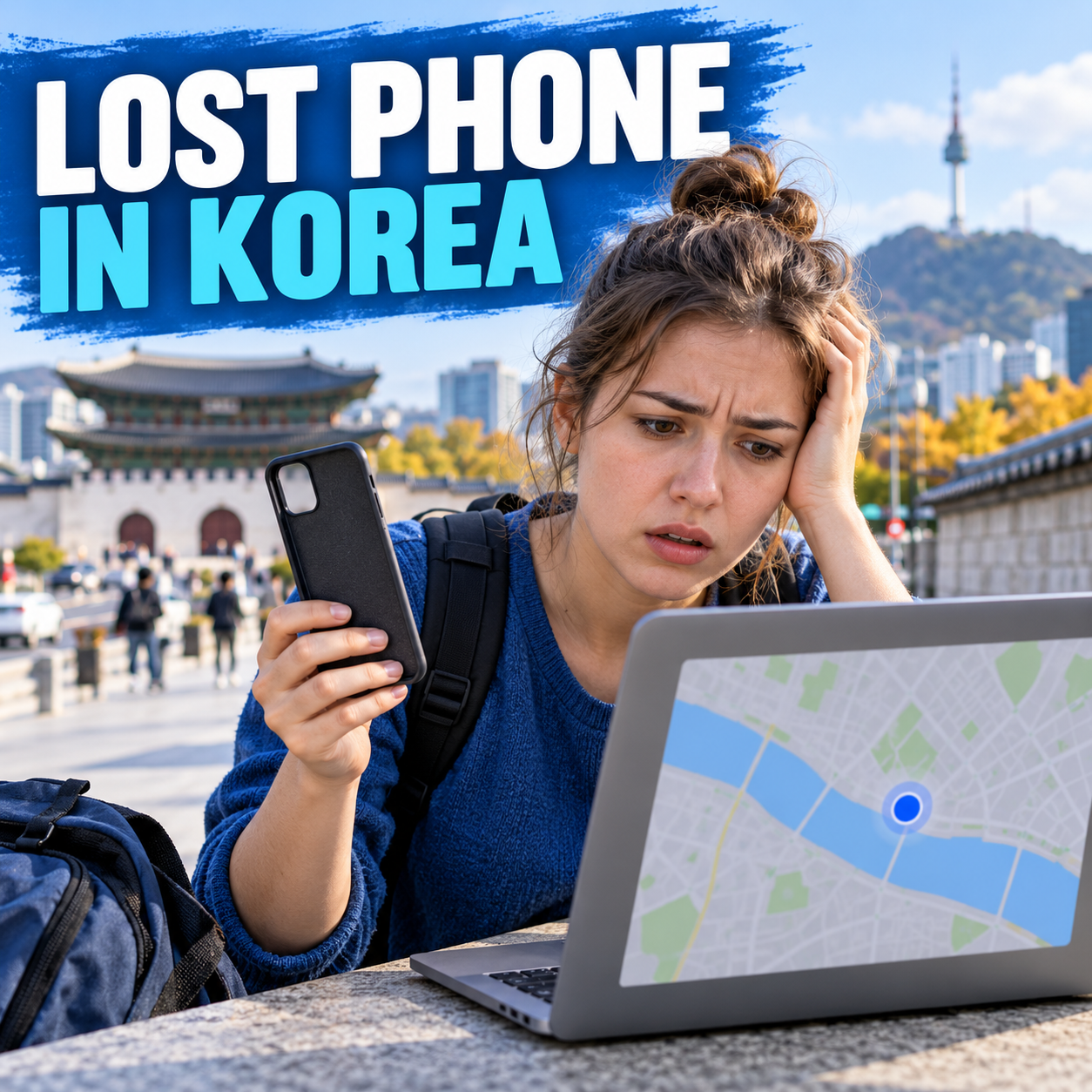
    If you lose your phone in Korea, use another device to locate and lock it first, then retrace the last safe place where you used it. If the location is unfamiliar, the phone was taken, or meeting the finder feels unsafe, do not recover it yourself—contact the police and your mobile carrier.

    Locate and lock the phone immediately

    For Android, open Google Find Hub; for iPhone, open Find My or iCloud.com/find, then select the missing device and mark it as lost.

    Use Play Sound only when the phone may be nearby. A map pin is an estimate, especially indoors or underground. Save a screenshot of the location, time, battery status, and device name before the information changes.

    Google says Find Hub can locate, secure, or erase a supported Android device when the required account and device settings are available. Apple says Lost Mode locks the device and helps protect account access. Add a safe callback number that is not the missing phone, but do not reveal your hotel room, home address, passport number, or other sensitive details.

    Check the last venue and transit operator

    Call the exact café, hotel, taxi service, station, airport, or train operator where you last used the phone and describe the time, case, model, and lock-screen image.

    Record the line, direction, boarding and exit stations, approximate car position, and time. For a taxi, keep the receipt, payment record, vehicle number, or booking-app trip details.

    Report the loss through Korea Police channels

    For an ordinary loss, use the Korea Police Civil Services portal or visit a nearby police station, police box, or patrol division; if it was stolen or you face immediate danger, call 112.

    The official police service states that a lost-property report can be filed online or in person and that no supporting documents or fee are required for the basic report. It also provides an English lost-item report form. Online access may still require identity verification, so short-term visitors who cannot complete login should visit the nearest police facility.

    Prepare the brand, model, color, case, distinctive marks, IMEI or serial number if available, last known time and place, and a safe contact method. Keep the receipt or management number. If you also lost your passport, use the separate lost passport steps in Korea because embassy and departure procedures are different.

    Suspend the SIM without losing account access

    If the phone appears stolen or recovery is unlikely, contact the Korean carrier or travel-SIM provider and ask to suspend the line, block replacement misuse, and explain the replacement process.

    Before suspension, confirm that you can sign in to your email, Apple Account or Google Account, banking apps, and travel services from another trusted device. Save backup codes or switch important two-factor verification to a method you still control. Never give a caller or text sender your screen passcode, verification code, or account password.

    Protect payments and important accounts

    Review the primary email account, mobile wallet, banking, messaging, cloud storage, and password manager for unknown sessions or changes.

    Start with the email account used for password recovery, then secure financial and messaging accounts. Use official apps or websites typed manually, not links sent by someone claiming to have found the phone. Apple explicitly warns that it will not contact you to say a missing iPhone was found and advises against sharing passcodes or verification codes.

    Contact your card issuer if wallet cards or banking access may be exposed.

    Erase only after recovery options are exhausted

    Remote erase is the final privacy step because it is irreversible and can reduce or end later tracking capability, depending on the device and setup.

    Google warns that a factory reset permanently deletes device data and removes the Android device from Find Hub. Apple advises trying other recovery steps first and not removing a stolen device from Find My, because that removes Activation Lock. Read the confirmation screen carefully before sending an erase command.

    Frequently asked questions

    The safest plan is to lock first, document the device details, use official recovery channels, and separate an ordinary loss from suspected theft.

    Can I track a phone after the SIM is suspended?

    It may still receive location or lock requests over Wi-Fi, but results depend on prior settings, power, connectivity, and the device platform. Ask the carrier what the suspension affects.

    Should I call 112 for every lost phone?

    Use the lost-property service or a police facility for an ordinary loss. Call 112 when theft, immediate danger, or an active crime is involved.

    What if Find My or Find Hub was not enabled?

    Call the last venue and transit operator, file a police report, suspend the SIM when appropriate, and secure the recovery email and other critical accounts.

    How do I know the case is resolved?

    After recovery, unlock the phone yourself, inspect account activity, restore the SIM, and test calls, data, wallet access, and account recovery.

    Related guides

    Korea Tourist eSIM Not Working|Activation, Data Line, and Roaming Fixes

    Official resources

    Google: Find, secure, or erase a lost Android device