
If a Korean disaster alert is unreadable, install the official Emergency Ready App, choose English, select your regions, and allow notifications and location. You can then read supported alerts and find nearby safety facilities.
Checked August 26, 2026, against official guidance. It never replaces 112 police or 119 fire and ambulance service.
Set it up before the next alert
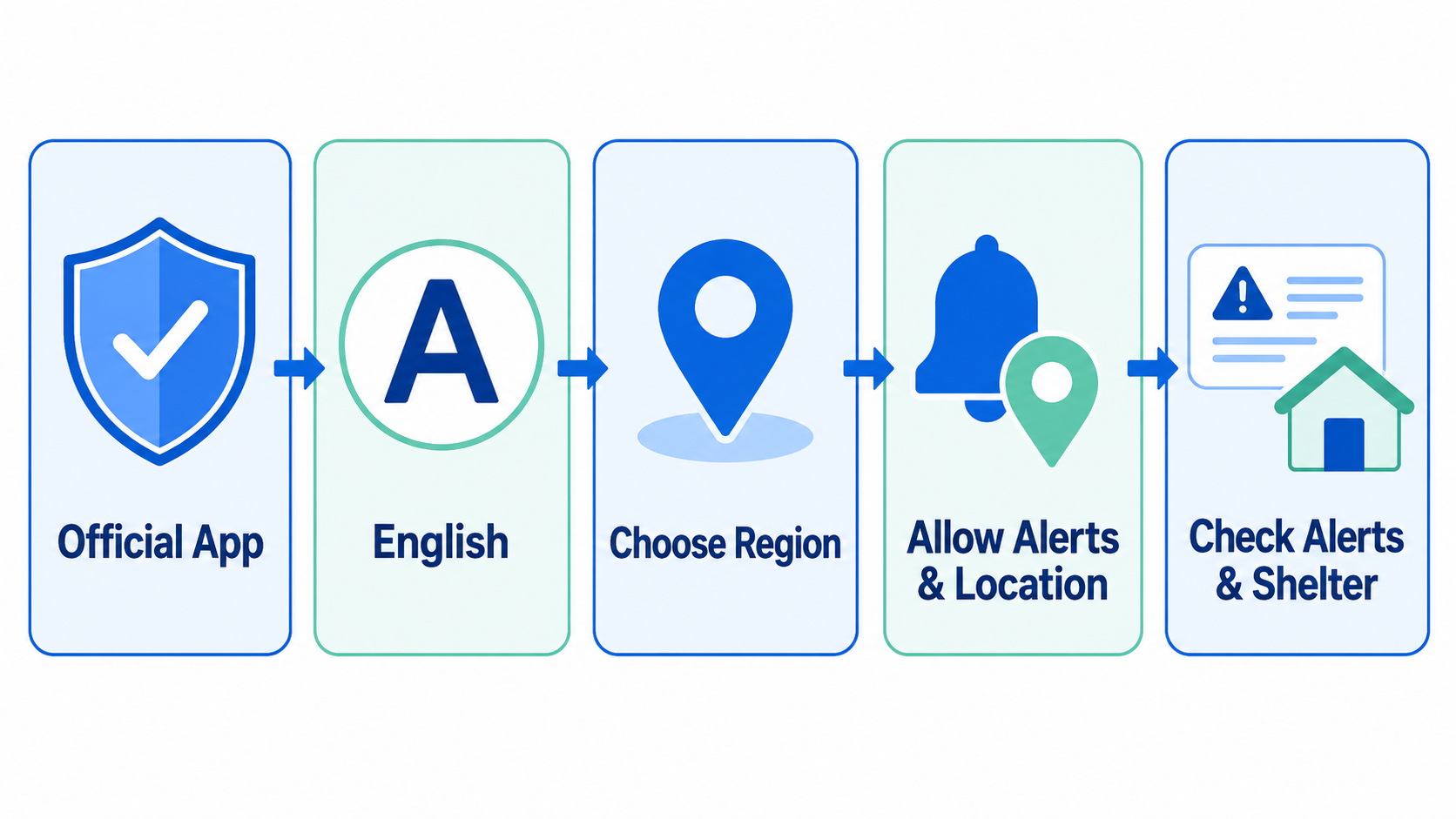
Verify the government publisher, set English, choose your current and next regions, enable notifications and location, then open the shelter map once.
Quick route: official app → English → regions → permissions → alert list and map → phone settings if alerts are missing.
1. How do I identify the official app?
Search “Emergency Ready App” and confirm that the provider is Korea's Ministry of the Interior and Safety. Do not install from a link in an unknown message.
The ministry's June 15, 2026 notice says the app provides alerts in 22 languages, safety guides, and shelter information. Install it from the official store on working data. If a prepaid SIM is offline, use the Korea SIM setup guide. The normal result is the main safety screen without a payment request.
2. How do I switch alerts to English?
On Android, choose English inside the app settings. On iPhone, use the app language option in iOS settings; Seoul also directs users to Settings → General → Language & Region when needed.
Reopen the app and view a recent alert. Supported content should appear in English. Keep the Korean place name so responders can identify it. Prepare Naver Map in English for directions.
Keep both versions
Use English to understand the action and the Korean place name to confirm the exact district with hotel staff, police, firefighters, or a driver.
3. Which regions and permissions should I select?
Choose where you are staying and your next destination, then allow notifications and location. The alert list should match those areas and the facility map should find nearby services.
Add a destination before departure; remove old regions later. Do not disable all alerts.
| Setting | Choose | Normal result |
|---|---|---|
| Region | Stay plus next trip | Local alerts appear |
| Notifications | Allow | New notices display |
| Location | Allow for nearby services | Facilities can be found |
4. What should I do when an alert arrives?
Read the hazard, location, time, and required action in that order. If your area is included, follow the official instruction first and verify later updates through the app or National Safety Portal.
- Hazard: identify flood, typhoon, earthquake, fire, heat, snow, or another risk.
- Place: compare the city or district with your map position.
- Action: avoid, evacuate, shelter, or wait as instructed.
- Update: reopen the alert list for later notices.
- Urgency: call 112 for police or 119 for fire and ambulance.
Save Korea's essential emergency numbers. The multilingual 1330 Travel Helpline can assist travelers and connect related services, but it must not delay a direct 112 or 119 call.
Never approach a hazard to check it
Stay away from flooded underpasses, dangerous coasts, smoke, damaged buildings, and restricted zones. Follow evacuation staff even if your usual map route remains open.
5. Why are English alerts not arriving?
Check language and region first, then notifications, location, mobile data, Focus mode, and battery restrictions. If alerts appear in app history but not as banners, phone notification settings are the likely cause.
Allow lock-screen alerts, remove background-data restrictions, and restart the phone. If the Safety Portal shows a current alert but the app does not, update the official app. Reinstall only after noting your regions, then grant permissions again.
Ready check
Official app, English, correct regions, both permissions, loaded alert history, and working facility map mean the setup is complete.
6. How do I confirm it is fixed, and what comes next?
The setup is fixed when English opens, your regions remain saved, recent alerts load, and the facility map finds your area. Test all four results instead of waiting for a real emergency.
Verify the fix: reopen the app, read one saved alert, and locate one nearby facility. If the problem remains: give 1330 or official support your app version, phone model, system, region, and notification screen. Use the Safety Portal and emergency numbers meanwhile.
FAQ: Frequently asked questions
Prepare the app early, but keep official emergency numbers as the final route whenever danger is urgent or the app is unavailable.
Q1. Will every local alert be translated perfectly?
A. Do not assume that every place name or local notice will be fully translated. Keep the Korean original and confirm an unclear instruction with local staff or 1330.
Q2. Can family outside Korea monitor my destination?
A. They may select the same region, but you must follow instructions for your actual location.
Q3. What if the map shows the wrong district?
A. Refresh location, check phone location permission, and manually select your real region. Compare the Korean address with a map before moving.
Q4. Is every shelter shown in the app open now?
A. A listed facility is not proof of current access. Follow the live alert, signs, and officials directing people to an operating location.
Q5. Will hotel Wi-Fi be enough?
A. It works only while connected. Keep mobile data or another official information route available.
Q6. Does a louder sound always mean a more serious alert?
A. Do not judge severity by sound or color alone. Read the named hazard, affected place, and required action.
Q7. How should I prepare for a child or older traveler?
A. Save the hotel address and 112, 119, and 1330 on paper, agree on a meeting point, and keep the responsible adult's phone configured.
Install the verified app, set English and the right regions, allow the required permissions, and test both the alert list and map. During a real warning, follow the official action and call 112 or 119 without delay for immediate danger.
댓글 쓰기